Annotated Catalog of the Collection
Instructions
This catalog may be used in two ways. The casual viewer
may browse, search, and inspect records. The editor may
do all of that, but may also log in to add, edit, and manage records.
For the Casual Viewer
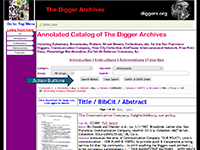
The catalog opens in browse mode. At the top of the page are the main
search controls:
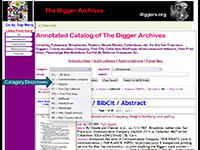
Category
Use this menu to limit results to a particular body of material produced
by one of the following entities: Communication Company, Diggers, Free
City Collective, Free Print Shop, Kaliflower, Planet Drum, Planetedge,
or miscellaneous Haight-Ashbury and countercultural material.
The "category" is determined by the catalog number of the item. In
some cases, there is overlap. For example, many items written by the
Diggers were published by the Communication Company and Free City
Collective. In that case, search for Digger-related items using the
"Group" search.
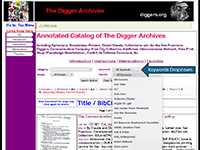
Keyword
Use this menu to filter records by an assigned keyword.
Group
Use this menu to limit results to a particular group designation. For
example, Digger-related materials have been grouped across the various
categories.
Search
Enter a word or phrase to search across the catalog records. This is
useful for titles, names, subjects, and other text associated with a
record.
After setting any combination of these filters, click Search
Button to display matching records.
Browsing and Sorting
If the search box is left empty, the catalog functions as a browsing
tool. You may browse all records, or browse within a selected category,
keyword, or group.
The Switch to DATE Order / Switch to CATALOG
Order button changes the sort order of the displayed records.
One arrangement follows catalog number; the other follows date.
The Clear Search button resets the search box and
returns the filters to their broadest settings.
A status line appears above the results, showing the current
category, keyword, group, order, search string, record count, and page
number.
Viewing Records
Results are displayed in pages. Use the pager links to move from one
page to another.
Each result shows:
- thumbnail image, when available
- title
- catalog number
- a short bibliographic citation
- abstract
- note, when present
Click the thumbnail image to enlarge it. Click
again, or use the on-screen return behavior, to go back. Once the image
has been enlarged, you can move it around and zoom in and out
using the mouse controls. You can also rotate the image with the
on-screen controls.
Click the title or the Full record
link to open the complete catalog record. The full record displays the
entire metadata set, including fields such as title, author,
publication, date, medium, dimension, collation, collection, keywords,
group, and related notes. It also includes the abstract and any full
text entered for that record.
Use Return to Catalog to go back to the exact search
or browsing context from which you came.
For the Editor Login
Editors have all of the capabilities of the casual viewer, plus the
ability to maintain the catalog.
To enter editor mode, click Editor Login and enter
the password. Once logged in, the page will display an Editor
Mode banner and additional editing controls.
Editor Functions on the Main Results Page
When logged in, each record on the results page displays additional
controls:
Edit
Opens the edit window for that record.
Follow up
A checkbox used to flag the record for later attention.
Follow-up note
A small text field next to the Follow up checkbox. Enter a brief
reminder or work note here. The note saves when you press Enter
or click away from the field.
These follow-up tools are meant for quick editorial workflow while
browsing search results.
Adding a New Record
In editor mode, click + Add Record to open the
add-record form.
At minimum, a new record requires:
The add form also allows entry of the full metadata set, including
bibliographic, descriptive, image, and organizational fields. Among
these are:
- author
- year
- medium
- publisher
- place
- publication title
- volume / issue / page
- Date 1 / Date 2
- dimension / extent
- imprint / collation / collection
- abstract
- full text
- notes
- private notes
- thumbnail image filename
- large image filename
- group / sub-group / series / folder
You may also assign:
Keywords
Choose from the keyword list to add controlled keywords to the record.
Authors (normalized)
Choose from the author list to link the record to normalized author
entries.
The add form also includes the Follow up checkbox
and Follow-up note field, so new records may be flagged
immediately if needed.
When finished, click Add record. The system returns
you to your prior browsing context and displays a confirmation message.
Editing an Existing Record
Click Edit from the results page, or Edit
this record from the full-record screen.
The edit form opens in a floating modal window. It includes a live
preview area for the thumbnail and large image. As you change image
filenames, the preview updates automatically. Clicking the preview
thumbnail opens the large image.
The editor may revise any of the catalog fields, including:
- core bibliographic data
- abstract
- notes
- private notes
- full text
- image filenames
- grouping fields
- follow-up status and note
- linked keywords
- linked normalized authors
When finished, save the changes. The application preserves your
search, filters, sort order, and page position, so you return to the
same place in the catalog after editing.
Private Notes
The Private Notes field is visible only to the
editor. It does not appear to the casual viewer. This field is intended
for internal cataloging remarks, unresolved questions, and working notes
not meant for public display.
Logging Out
When finished, click Logout to leave editor mode and
return the catalog to ordinary public-view behavior.
General Notes
- Not every record has an image.
- Not every record has full text.
- Search results may be narrowed by combining category, keyword,
group, and free-text search.
- The catalog is designed both as a finding aid and as a
descriptive scholarly tool, so abstracts and notes are often as
important as the formal metadata.
|